Edale uses an institutional-calibre investment platform to run client portfolios. The key benefits are typically more cost-competitive pricing, high-quality investment execution (efficient dealing, reliable processing, and robust oversight), and deeper functionality, such as advanced reporting, cash management tools, service permissions, and governance controls that help us manage investments consistently at scale. The trade-off is that the initial security and account activation can feel less retail-friendly: first-time access often involves extra identity checks, device/credential set-up, and stricter verification steps than a consumer app. That added friction is intentional—it’s designed to meet higher institutional security standards and reduce the risk of fraud or unauthorised access when significant assets are being linked and moved for the first time.
Activate account
First-time login requires a few steps and involves getting two-factor authorisation.
- Visit IBKR.com/activate
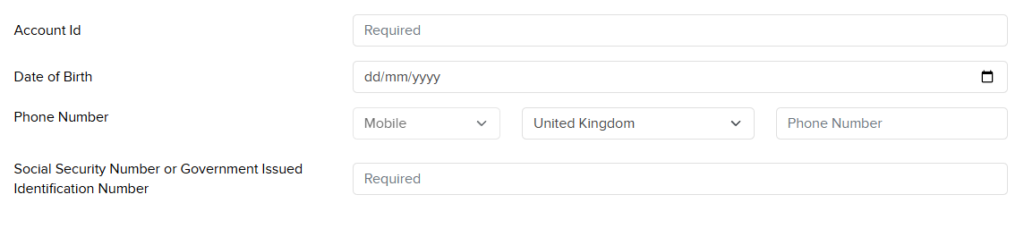
- Complete the fields shown below
- Account id starting Uxxxxxx
- Date of Birth
- Mobile telephone number, select your country and then enter your mobile number (you can enter 0)
- Enter US Social Security number, or National Insurance Number, or other tax identification number
- Press “Continue”
The next page will show you a method to verify your identity and confirm the two-factor authorisation. Now
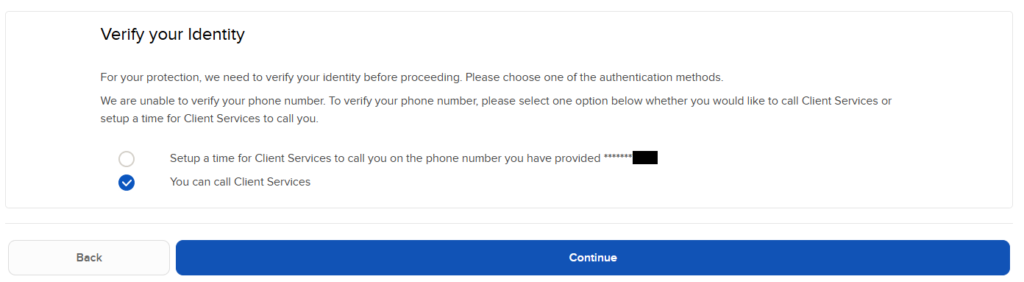
Confirmation token
The next page will vary depending on whether your mobile phone verification is complete or not.
Summary of Steps
Ignore the “call me” scheduling option (it is currently inactive).
Dial +1-833-981-4690 or +1-872-249-4690.
Verify your identity with the agent.
Input the token sent to your mobile phone to proceed.
Call to be verified
We recommend calling one of the numbers below. When the call is answered, you will need your account number, which starts with a Uxxxxxxx. You should also have your username ready to log in using the token you are provided.
- UK direct dial +44 20 3744 7220
- US toll-free +1-833-981-4690
- US direct dial +1-872-249-4690
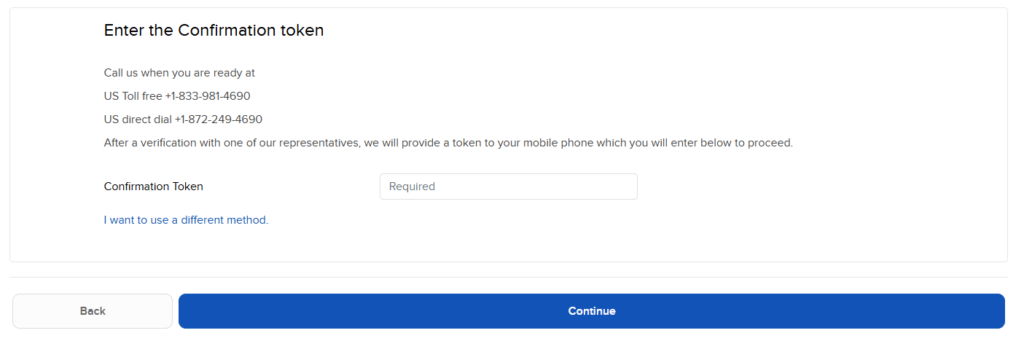
Login
- You will be asked to create three security questions.
- (The dropdown box offers a range of weird and delightful questions. Select those you like and provide answers you can remember.)
Two Factor Authorisation
- Use your favourite Mobile Authenticator app or a Password Manager with TOTP (Time-based One-Time Password) support to generate the authentication codes directly on your mobile device, independently from phone carriers or internet access.
- Temporary two-factor authentication methods if your device is lost, offline or otherwise unavailable.
- SMS Authentication: If you have not yet configured IBKR Mobile or received a Digital Security Card+, you can request that an authentication code be sent to your mobile device via SMS (text) message. This code must be entered in the login window to complete the login process.
- Email Two-Factor Authentication: Two-Factor Authentication via Email adds an extra layer of security by sending authentication codes to your registered email address. We enable Two-Factor Authentication via Email for users under specific conditions, and that change cannot be made by the user.
- Temporary Security Code Card: You can print a Temporary Security Code Card in Portal from the Settings > Security > Secure Login Systems menu. Once created, the card can be used for 21 days.
Password reset page
After entering your username and temporary password (provided over the phone), you will have access securely to your account.
There are four boxes:
- Username (prepopulated)
- Current password provided in the call
- New password you want
- Retype the new password to confirm
Manage Your Portfolio Anywhere
Download the Edale Investment App (Handy Trader) for secure, real-time access to your account from your smartphone
An App for portfolio monitoring with real-time data access, comprehensive security, and on-the-go convenience across various asset classes. It allows users to manage investments from smartphones or tablets, providing a streamlined experience for monitoring, trading, and tracking performance. Use for monitoring your Edale portfolio on the go and getting key information on your account.
Key Features
- Secure Access: Multi-factor authentication to keep your assets and data protected.
- Real-Time Reporting: Instantly view trade reports, portfolio performance, and account balances.
- Total Control: Update key account information and manage settings on the fly.
- Global Execution: Fast, electronic access to markets whenever you need it.